For classroom teachers who teach in a tested area, Teacher Specific Data (TSD) includes the percentage of students that scored Proficient or Advanced on state assessments and, for some teachers, a three-year rolling average Growth/PVAAS score.
Note - According to Act 13, where Teacher Specific Data is available and attributable to a classroom teacher, it must be used when completing 13-1 annual forms.
Typically, the Pennsylvania Value-Added Assessment System (PVAAS) is updated with the previous year's TSD in the fall. Once scores have been released to PVAAS, districts have the option to upload this data into their PAETEP portal. Doing so will pre-populate new 13-1 rating forms with this data and update any incomplete instances across your portal, saving valuable time for supervisors when finalizing those documents.
Table of Contents
- Step 1: Confirm PPID numbers are up to date
- Step 2: Obtain Data from PDE's PVAAS System
- Step 3: Upload TSD into PAETEP
- Step 4: Complete 13-1 forms
Step-by-Step Guide
Step 1: Confirm PPID numbers are up to date
Important - Educators must have their PPID numbers up to date in PAETEP in order to transfer their Teacher Specific Data to their annual rating form.Before uploading TSD, make sure the applicable employees’ PPID numbers are up to date. For more information and instructions, see How Do I Update PPID Numbers in PAETEP?.
Step 2: Obtain Data from PDE's PVAAS System
Step 2a: Log into PDE's PVAAS System
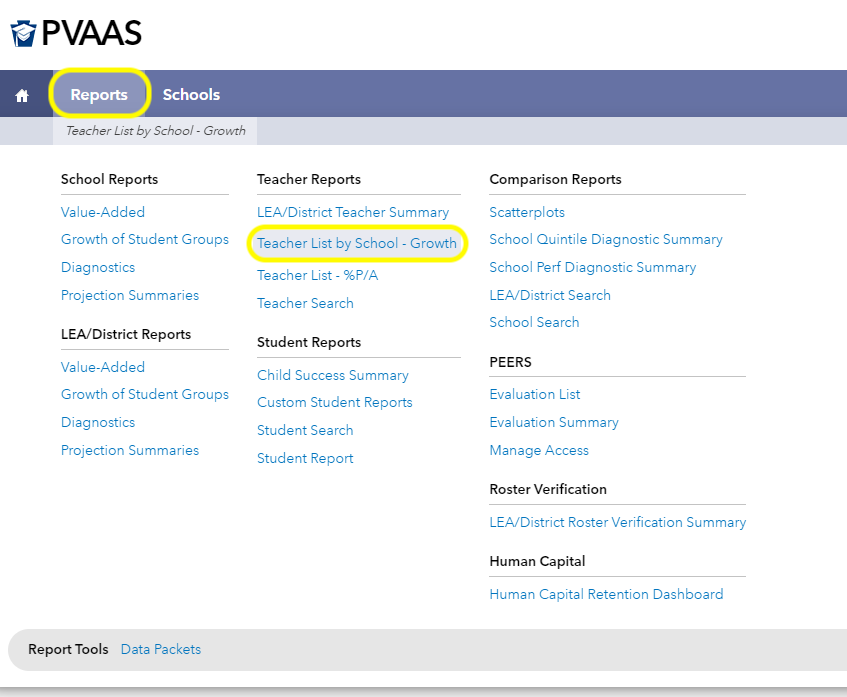
Step 2b: From the Reports menu under the Teacher Reports section, select Teacher List by School - Growth
Step 2c: Export the report, with the appropriate selections (.csv data format, select all schools (if appropriate), and ensure that the correct Tests/Subjects are selected - including all PSSA, Keystone, and the 3-Year Composite)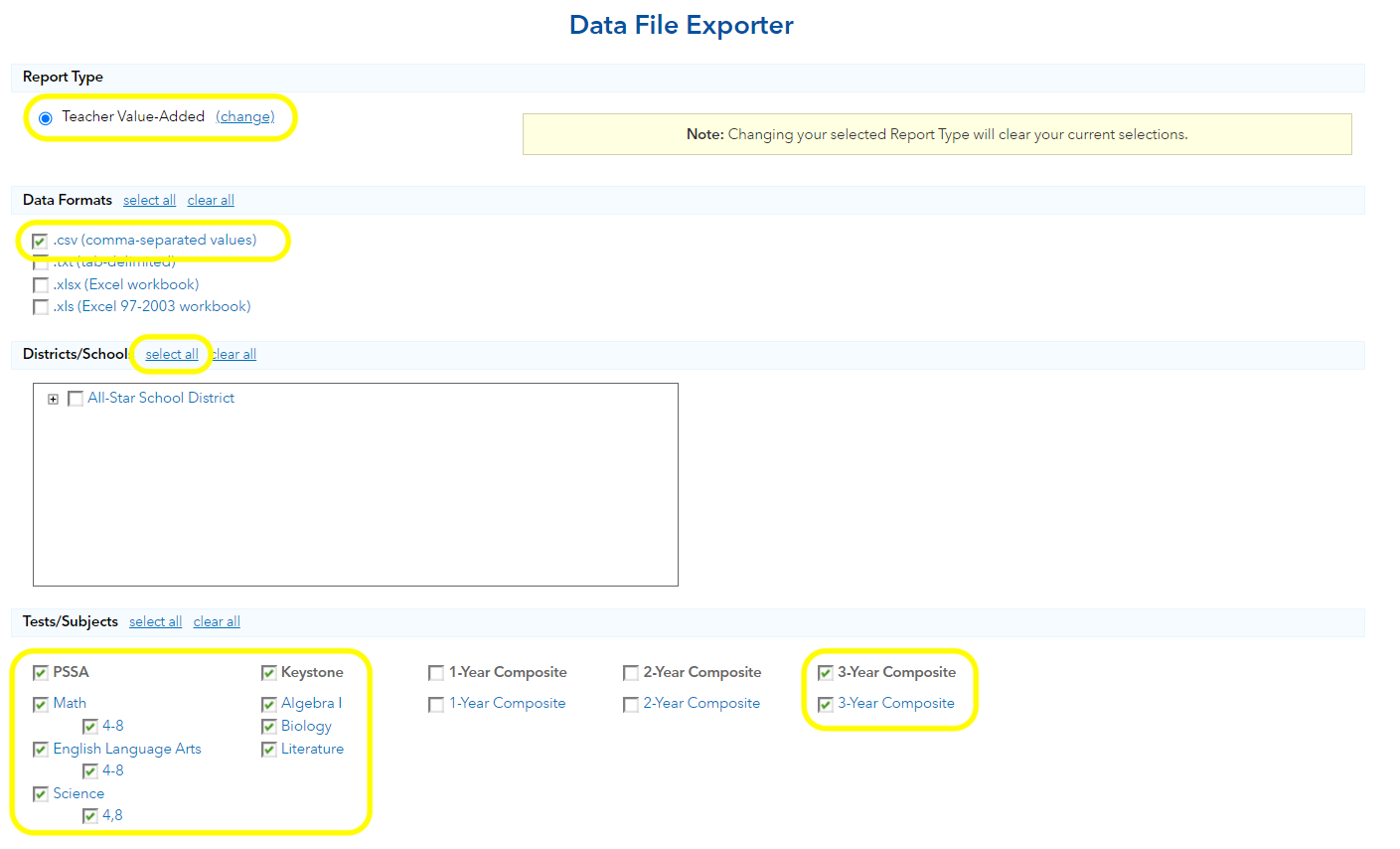
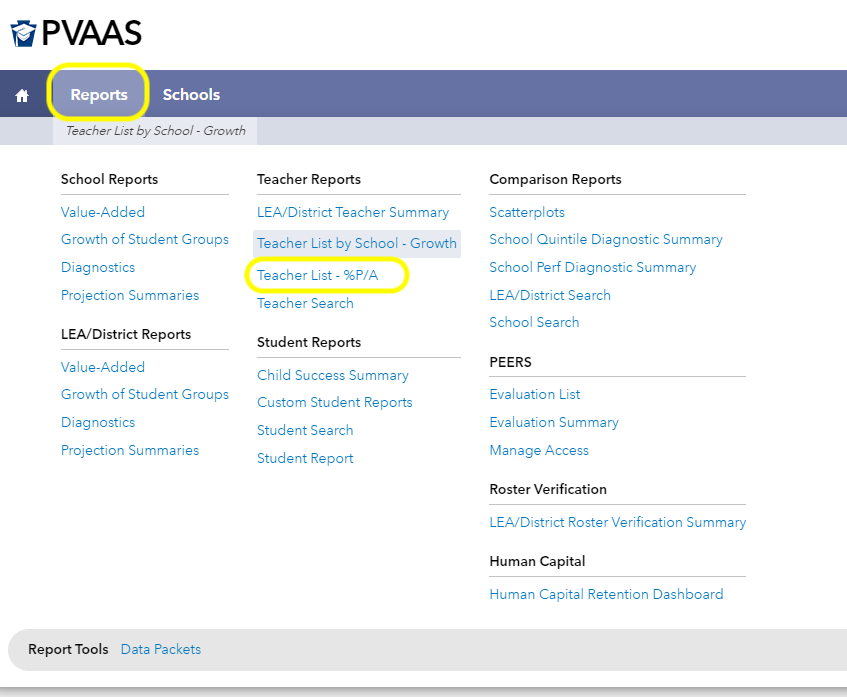
Step 2d: Next, return to the Reports tab, and select Teacher List by School - %P/A
Step 2e: Upload the file you receive from PVAAS, whether it is a CSV or Excel file.
Be sure to not make any adjustments to the data in the exported files, including sorting, filtering, and/or changing the column headers.
Step 3: Upload TSD into PAETEP
Step 3a: Log into PAETEP and navigate to the Teacher Specific Data Upload page, under Administration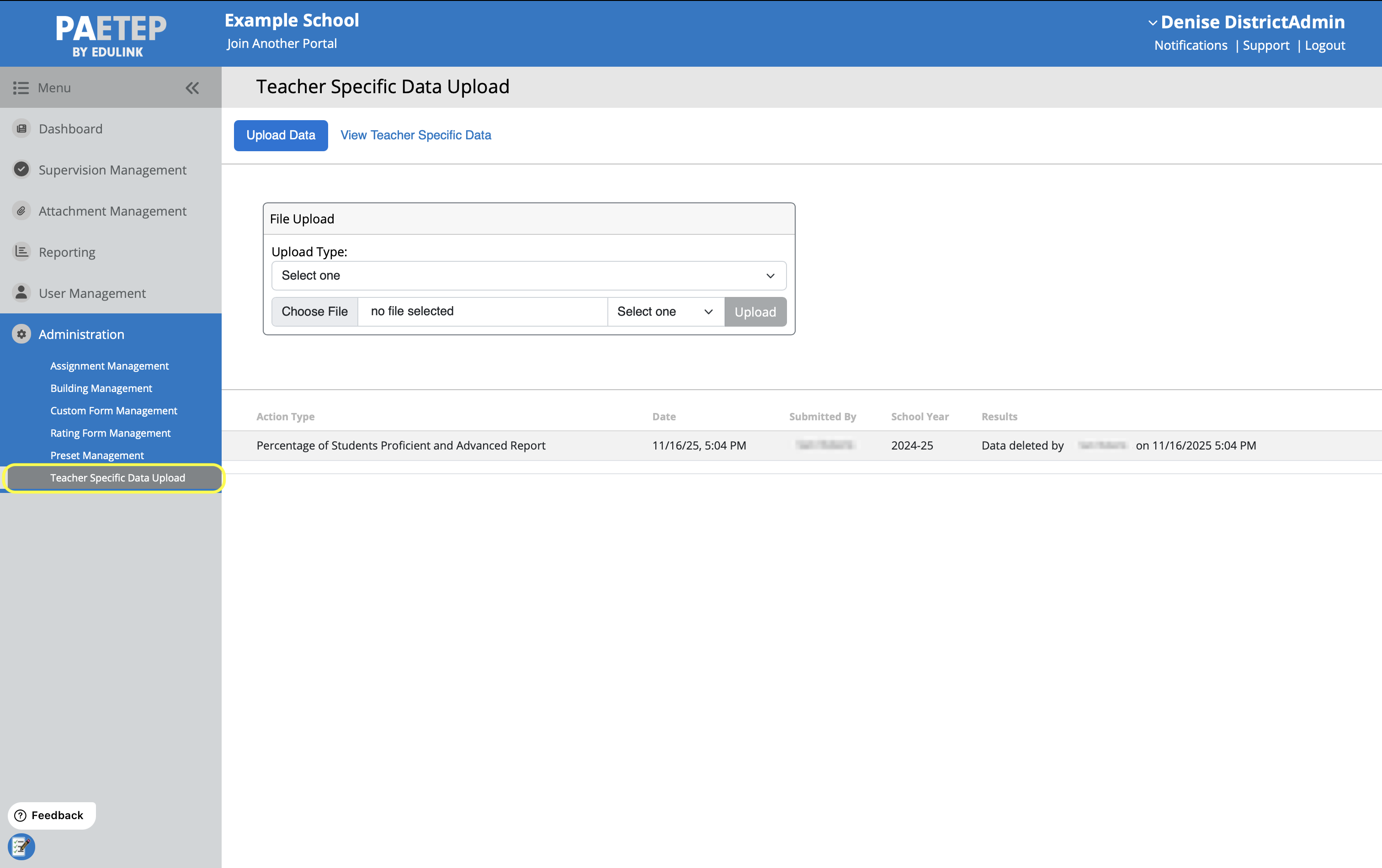
Step 3b: Upload both PVAAS files. Upload each file in the CSV or Excel format provided by PVAAS. For each exported report, choose the correct Upload Type and select the appropriate School Year.
Each fall, PVAAS scores are released for the previous school year. Keep this in mind when choosing the appropriate school year for your district's TSD upload.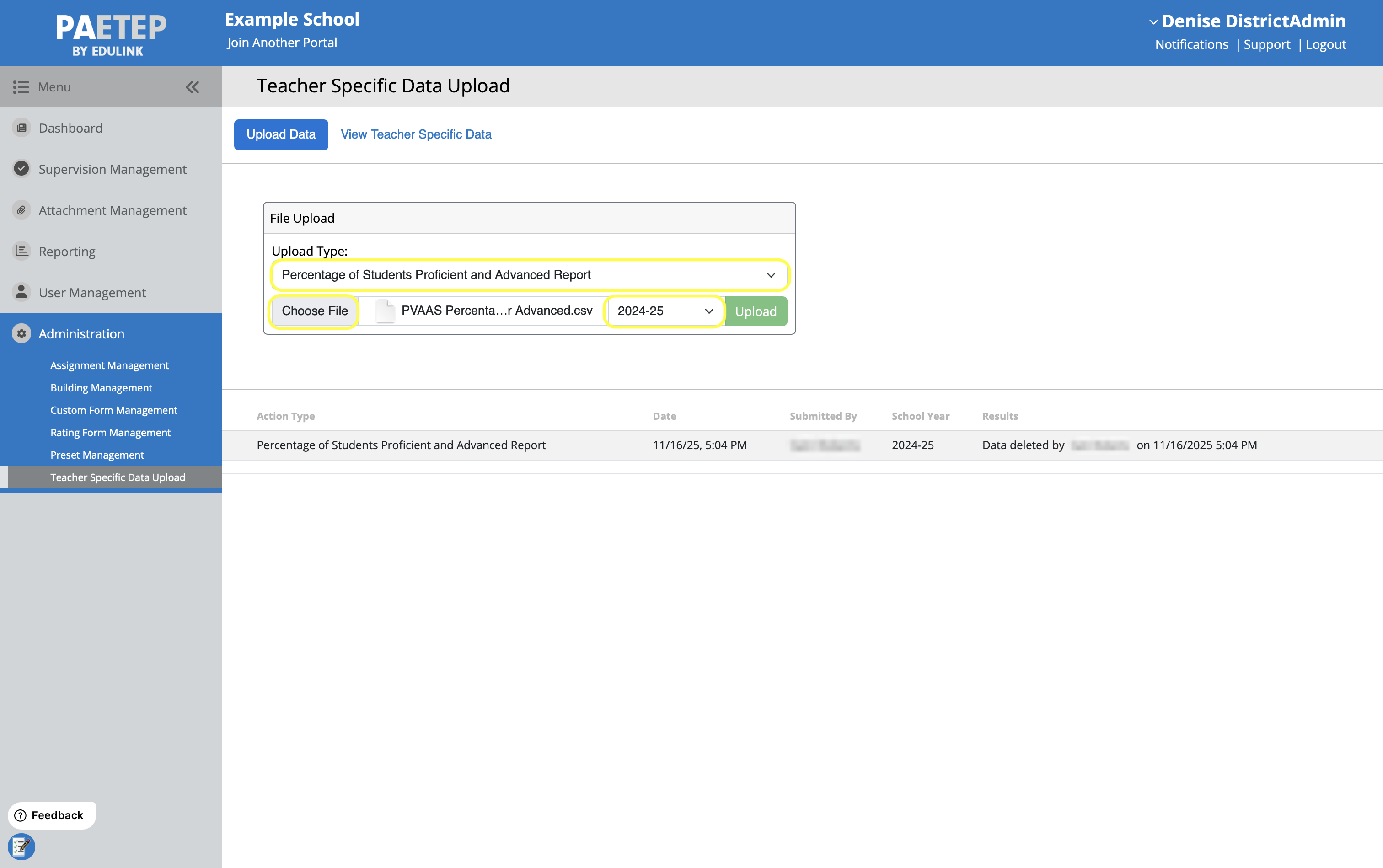
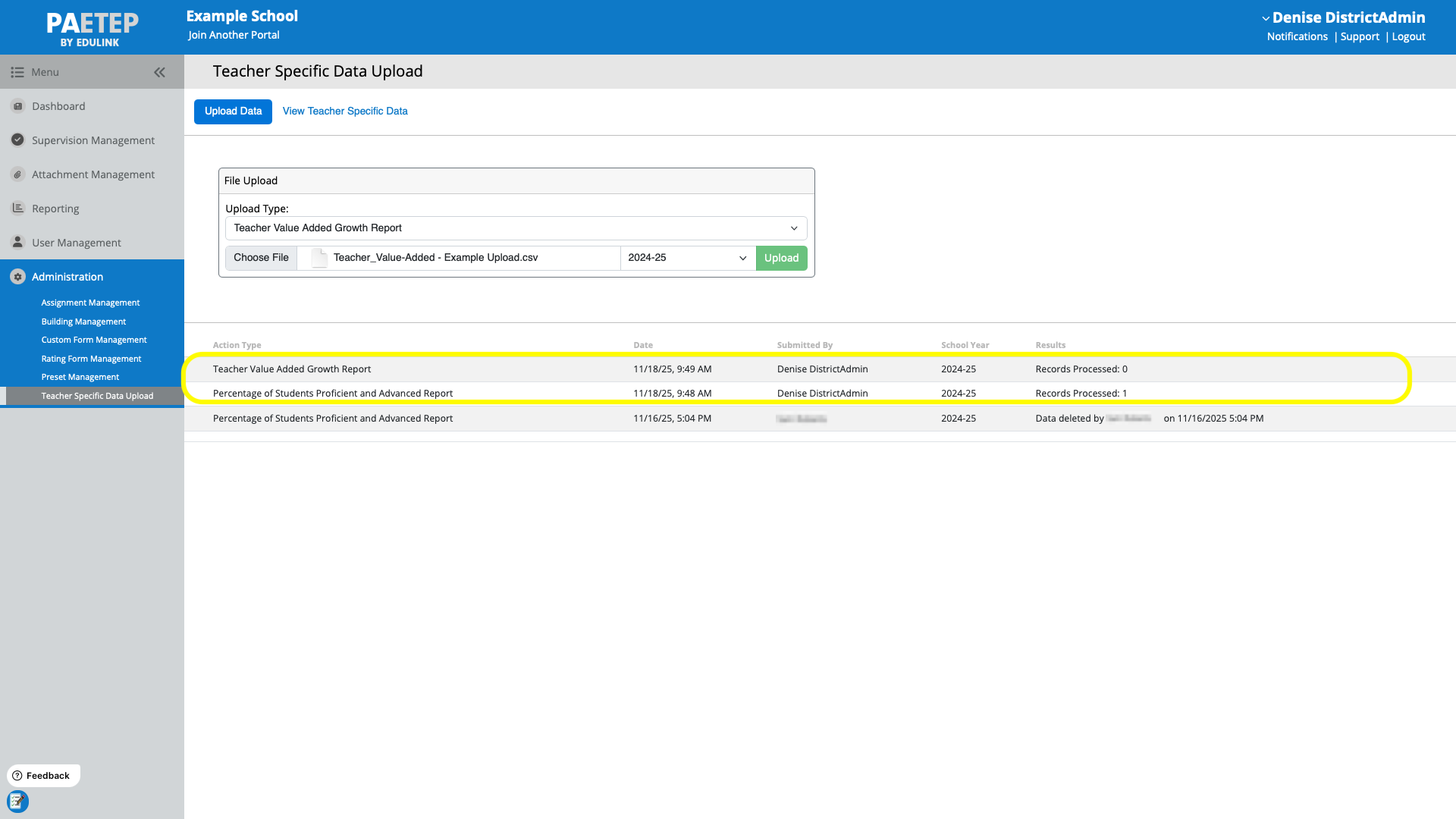
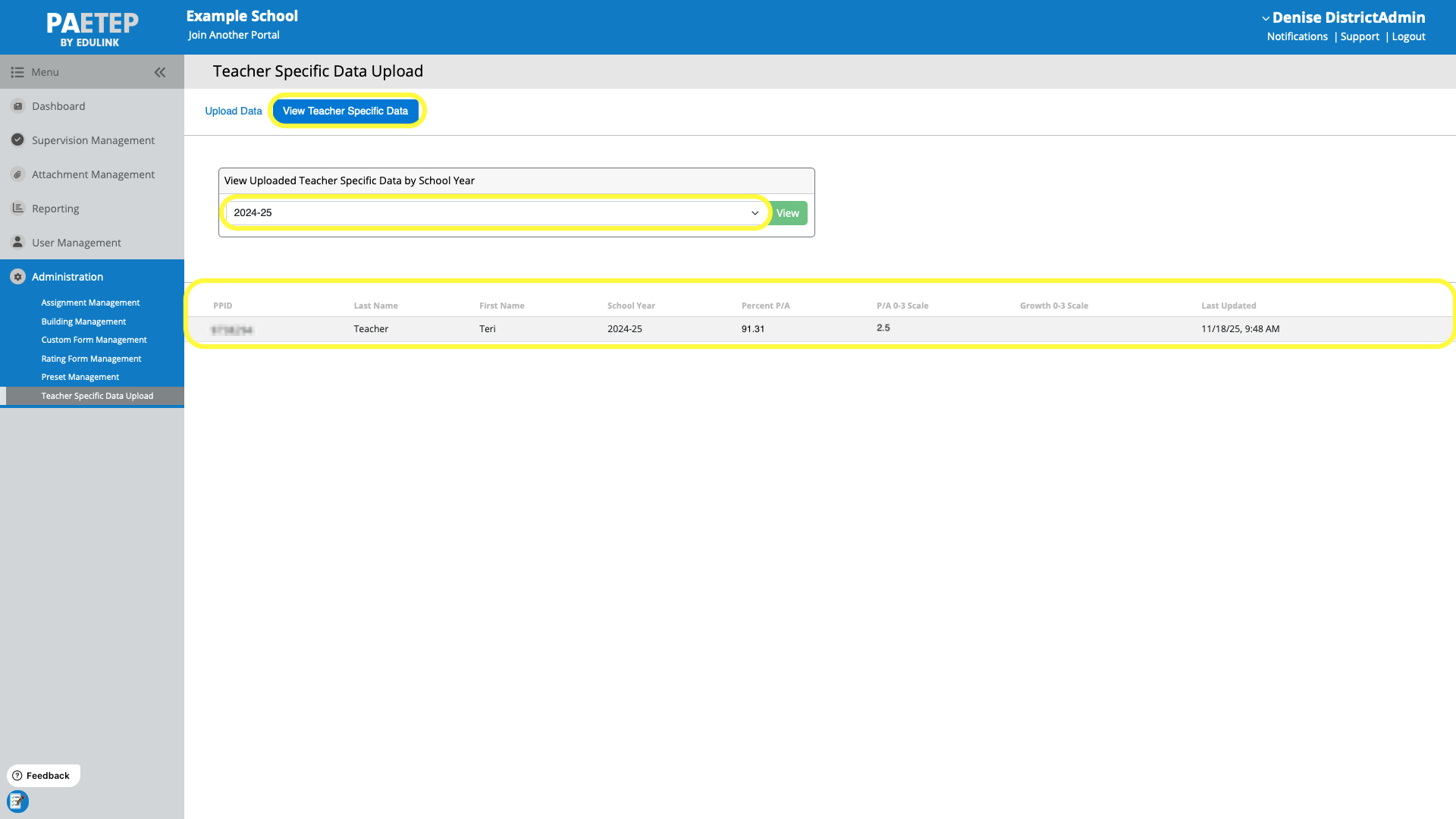
Step 3c: Confirm that both files have been uploaded
Step 4: Complete 13-1 forms
After both uploads are accepted, the teacher scores are available when completing the teacher’s 13 Rating Form. See Finalizing 13 Rating Forms.
Step 4a: After uploading this data, the TSD calculator modules will be updated with these scores. View/Create a 13-1 rating form for a teacher with uploaded scores. Click on the TSD calculator icon.
Note that the TSD (B.2) value cannot be manually entered. You must use the calculator modal and apply the uploaded data to complete this section of the form.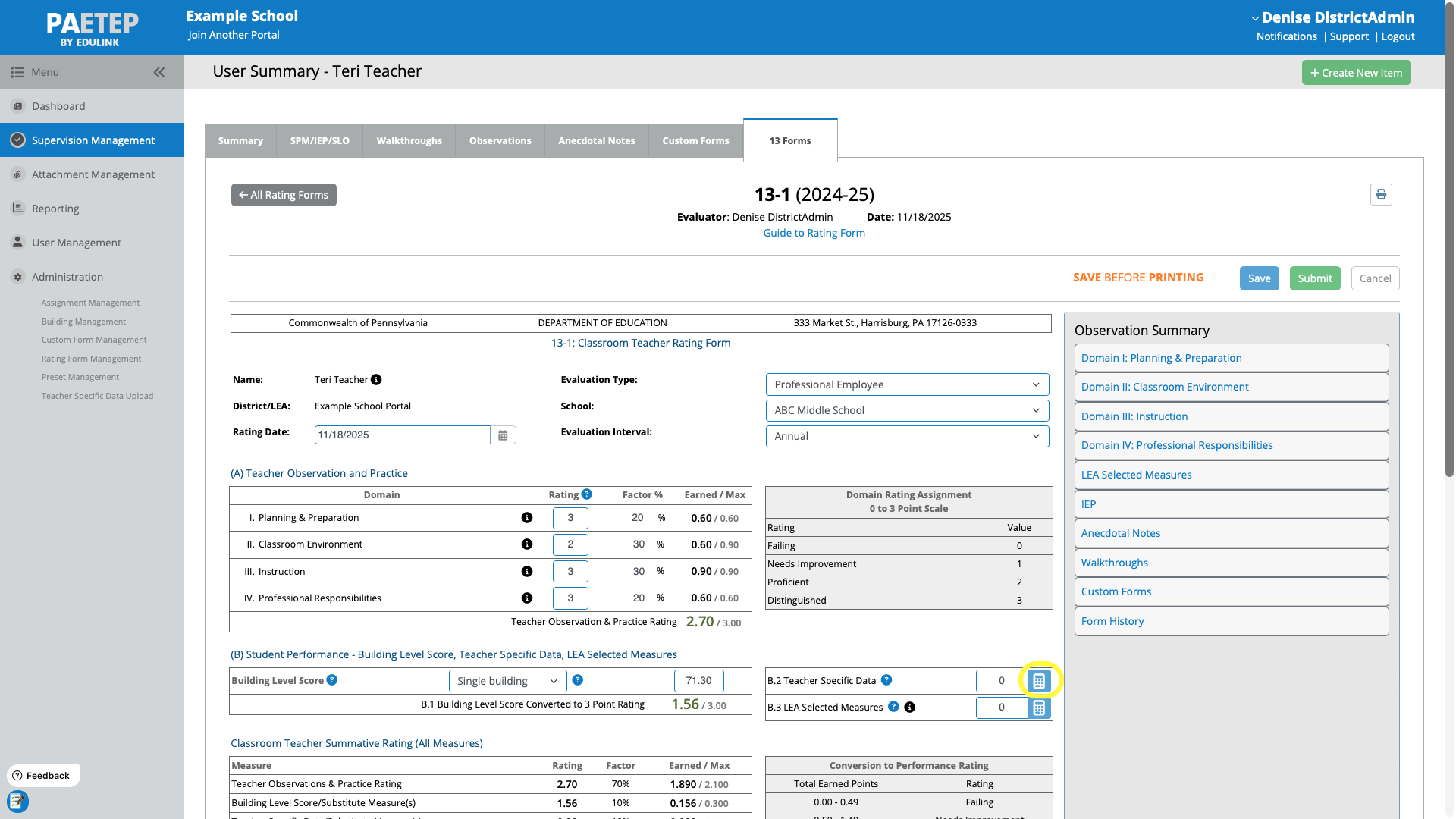
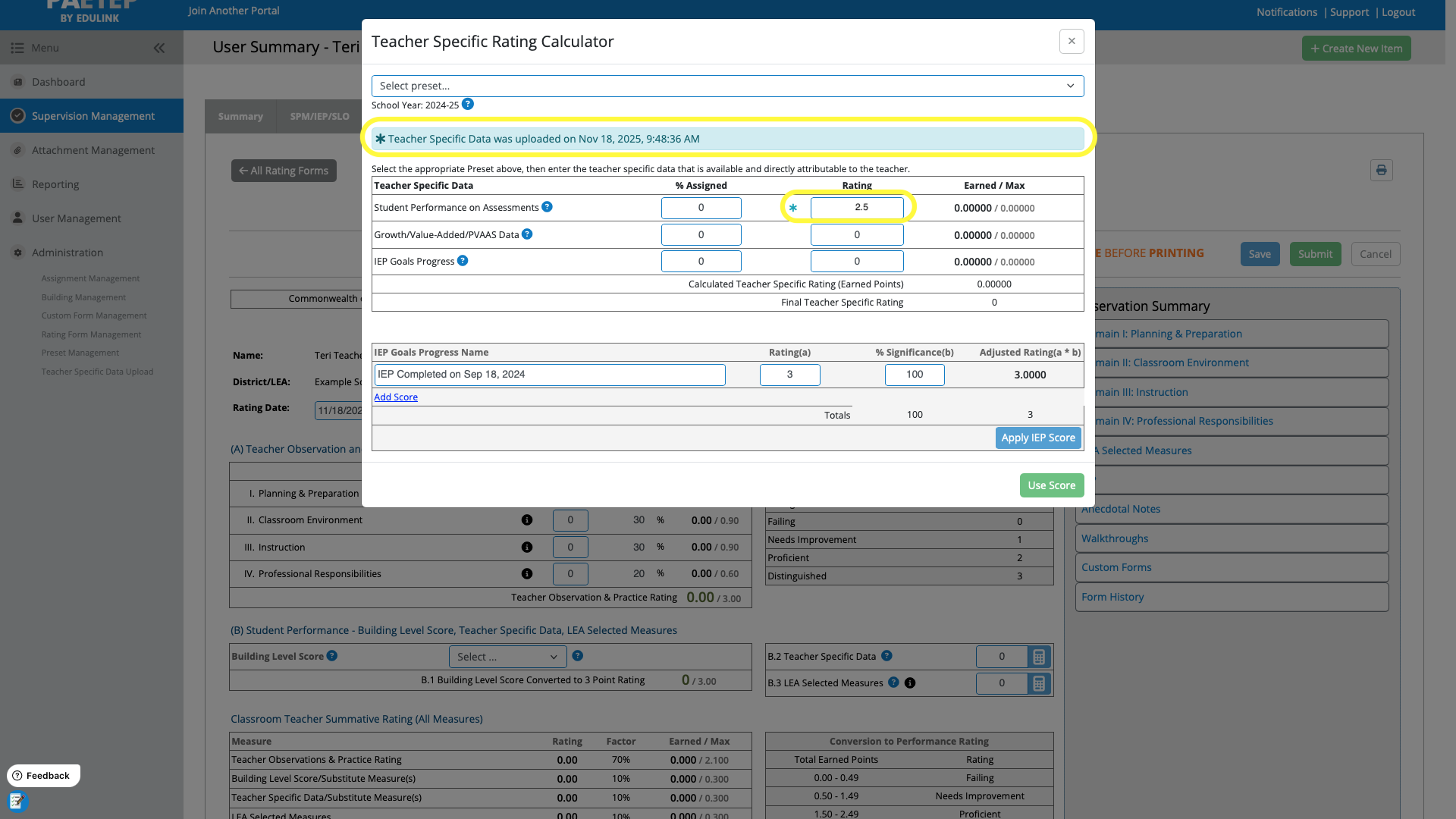
Step 4b: The uploaded score(s) is(are) indicated by a blue asterisk. Select the appropriate preset (and Apply IEP Score if applicable), then click Use Score. The score now contributes to the employee's rating.
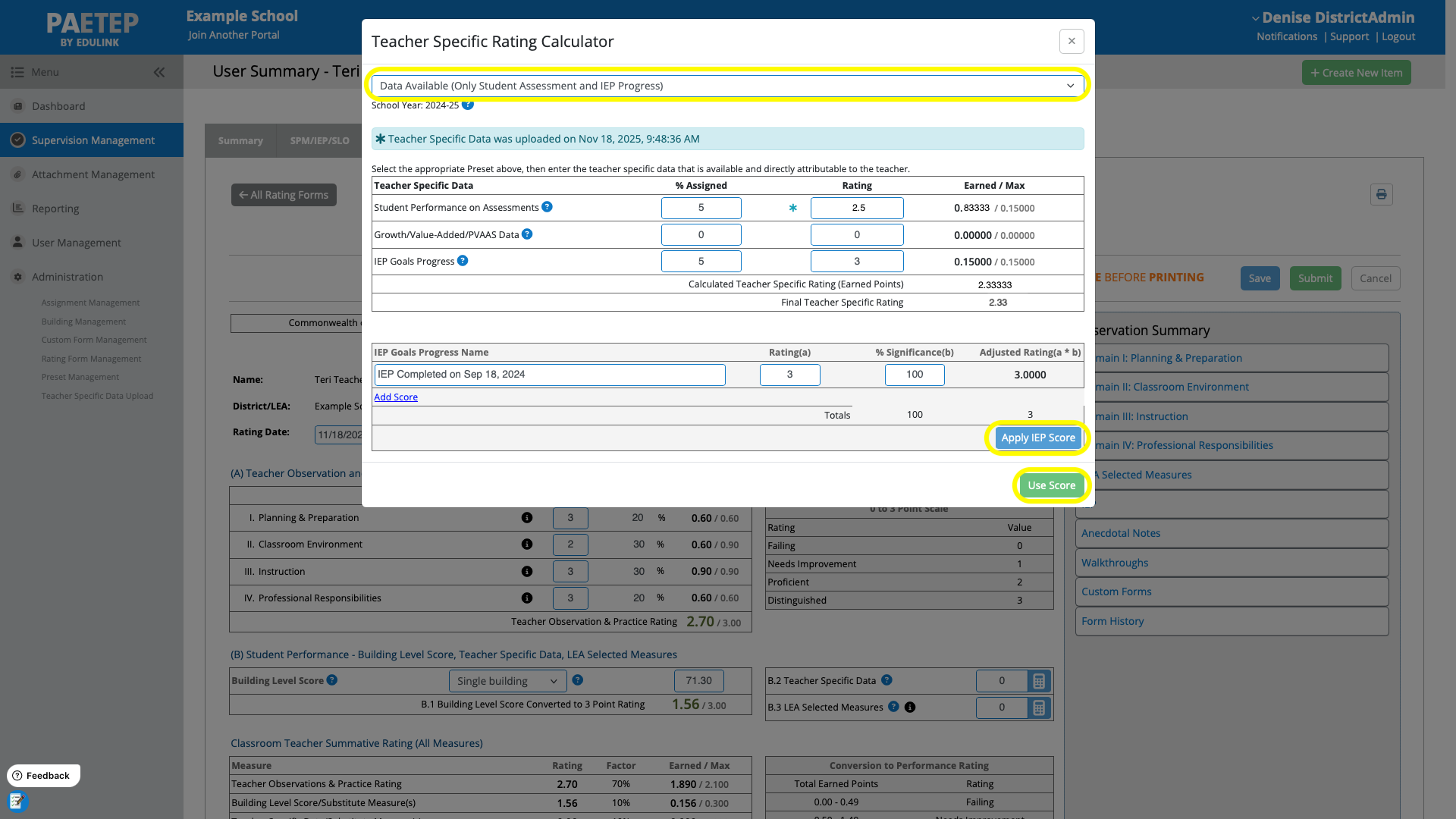
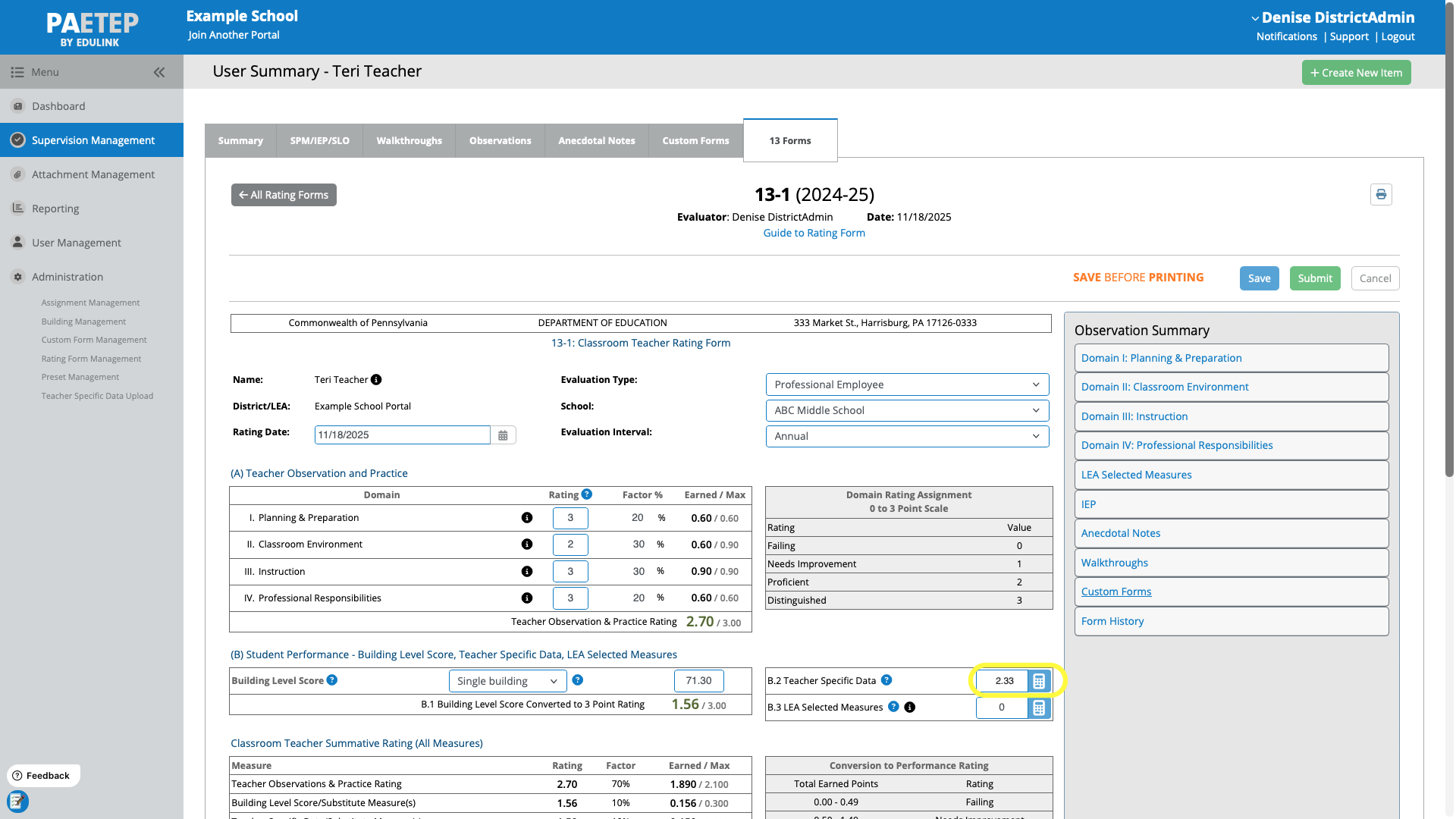
Uploaded TSD scores do not automatically contribute to the employee's evaluation rating. Supervisors/Admins must open the TSD calculator modal and apply the appropriate preset and click Use Score.Was this article helpful?
That’s Great!
Thank you for your feedback
Sorry! We couldn't be helpful
Thank you for your feedback
Feedback sent
We appreciate your effort and will try to fix the article