PPID numbers help PAETEP connect district-uploaded Teacher Specific Data to the correct educator's 13 forms. This article explains two ways to update PPID numbers: individual users can update their own PPID from their profile, or District Administrators can update PPID numbers for multiple users with a bulk upload.
Table Of Contents
Option 1: Users Update Their Own PPID
Users can update their own PPID number from their profile.
Option 2: District-Managed Bulk Upload
District Administrators can use User Onboard & Update to update PPID numbers for multiple existing users at one time.
Download the Existing Users Template
- Go to User Management > User Onboard & Update.
- Select Download Template.
- Select Existing Users Template.
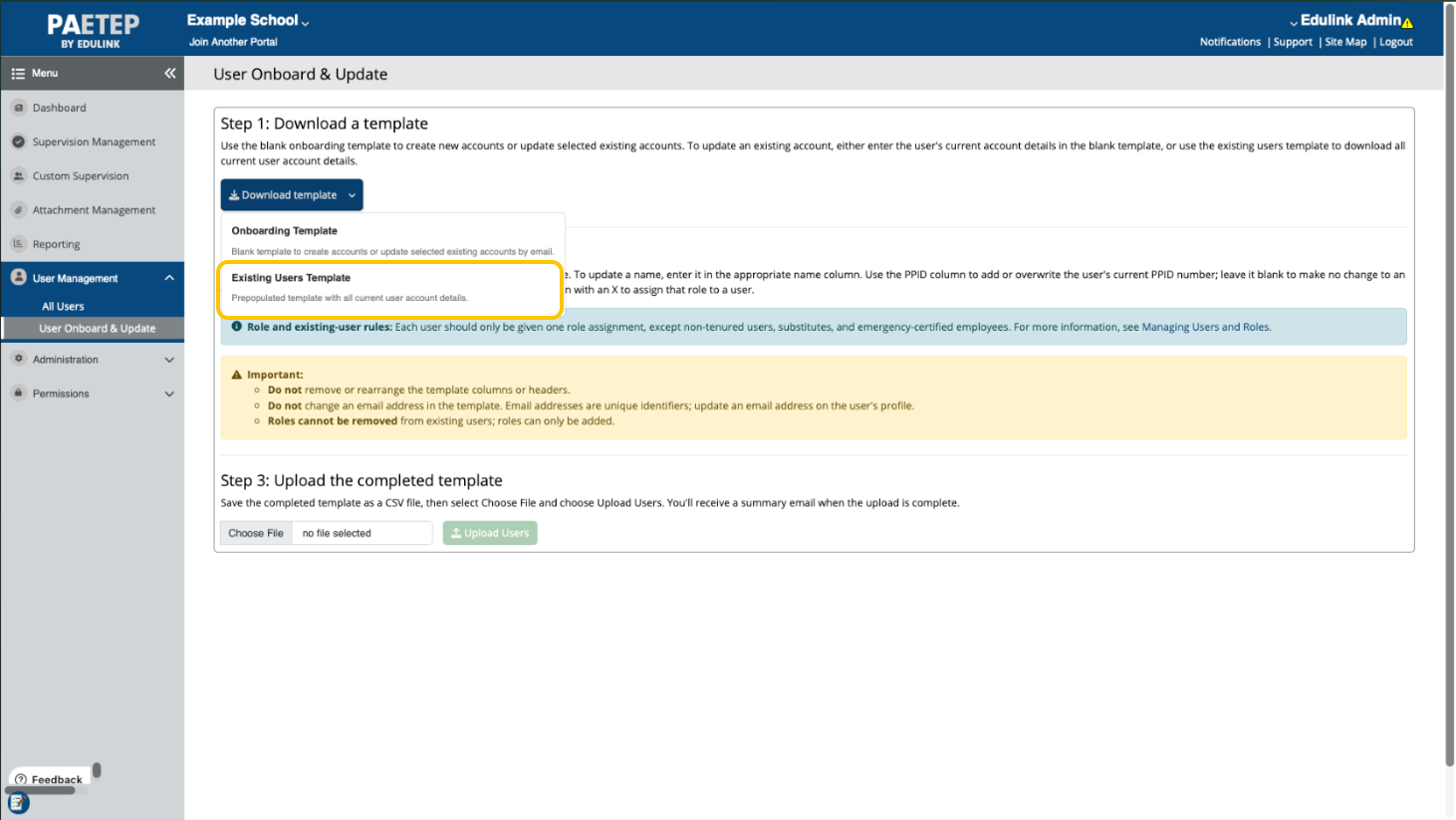
The download includes every existing user’s email address, first name, last name, PPID, and current marked roles.
Update PPID numbers
- Open the Existing Users Template.
- Enter or update the PPID number for each applicable user.
- Keep each existing user’s email address exactly as it appears in PAETEP.
- Do not remove, rename, or rearrange the template’s column headers.
- Save the file as a CSV.
For existing users, retain the role columns in the template. PAETEP adds any newly selected roles and retains existing roles.Upload the Existing Users Template
- Return to User Management > User Onboard & Update.
- Select Choose File and select the updated CSV.
- Select Upload Users.
- Confirm that PAETEP reports the users were queued for update.
For an existing user, PAETEP uses the retained email address to match the uploaded row to the user account. Uploaded roles can add roles; they do not remove existing roles.
Was this article helpful?
That’s Great!
Thank you for your feedback
Sorry! We couldn't be helpful
Thank you for your feedback
Feedback sent
We appreciate your effort and will try to fix the article