Custom Supervision allows districts to assign evaluators to employees in PAETEP for specific evaluation workflows. In particular, users with similar roles (or "peers") can be assigned to each other, without giving those evaluators access to the employee’s full evaluation history.
This feature is designed for scenarios where someone needs to complete a Custom Form on another employee, but should only see evaluations they started (not evaluations completed by other supervisors).
Common use cases include:
Teachers observing teachers (peer coaching)
Superintendent / assistant superintendent evaluations (district admin-to-admin)
Teacher leaders or department heads evaluating teachers
Head paraeducators evaluating paraeducators
Athletic directors evaluating PE staff or Teacher coaches
Lead nurses evaluating nursing staff
Note: Custom Supervision must be enabled for your PAETEP portal to use. You must also have purchased the Custom Form module to use this feature. Please contact our support team if you are interested in learning more.
Table Of Contents
- What is Custom Supervision used for?
- How to assign an evaluator (Custom Supervision Management)
- How evaluators see assigned employees
- Confidential visibility on the User Summary page (Limited vs Full view)
- FAQs
What is Custom Supervision used for?
This feature is for…
- Allowing peer or non-traditional evaluators to complete Custom Forms
Preserving confidentiality by limiting what evaluators can view on an employee’s User Summary
Supporting districts with complex evaluator relationships
Configurable for "One-off" evaluation relationships in specialized scenarios.
Note: Custom Supervision should not be used as a replacement for your existing Supervision Management process. Custom Supervision is ideal for districts that need evaluation relationships outside of the traditional supervisor → employee structure, while still protecting confidentiality.
Below are common scenarios where Custom Supervision should be used.
1. District Admin Being Evaluated by Another Admin
Scenario:
An assistant superintendent has administrative access in PAETEP but also needs to be evaluated by their superintendent.
Challenge Without Custom Supervision:
Previously, there was no way to have a user with the district administrator role evaluated in PAETEP.
How Custom Supervision Helps:
A supervision relationship is set up between the Superintendent and Assistant Superintendent using Custom Supervision. Because custom supervision has no building assignment requirements, these two users can now be set up for their evaluation purposes. After this relationship is set up, a custom form created to evaluate assistant superintendents can be used to complete this evaluation.
2. Teacher Leader / Department Head Evaluating Teachers
Scenario:
A district has a “Music Lead” or department chair who needs to evaluate teachers within their program using a Custom Form.
Challenge Without Custom Supervision:
Previously, there was no way to have a teacher evaluate another teacher.
How Custom Supervision Helps:
Now, the department chair teacher can evaluate other teachers assigned to them using a Custom Form, while only seeing the evaluations they personally complete. This allows the appropriate building principal to continue evaluating those teachers as they normally would, and to use the contribution from the department chair to help inform the final evaluation ratings.
3. Peer Coaching Programs (Teacher-to-Teacher)
Scenario:
Teachers participate in a peer coaching initiative where they evaluate one another using a Custom Form.
Challenge Without Custom Supervision:
Previously, there was no way to have a teacher evaluate another teacher.
How Custom Supervision Helps:
Custom Supervision allows peer evaluators to complete Custom Forms while maintaining limited visibility. This will allow teachers to work together, using PAETEP, to improve their instructional practice.
4. Head Paraeducator Evaluating Paraeducators
Scenario:
A district designates a head paraeducator to evaluate other paraeducators.
Challenge Without Custom Supervision:
Previously, there was no way to have a paraeducator evaluate another paraeducator.
How Custom Supervision Helps:
After a supervision relationship is set up using Custom Supervision, the head paraeducator can complete Custom Forms for assigned paraeducators.
5. Athletic Director Evaluating Teacher-Coaches
Scenario:
An Athletic Director needs to evaluate coaches (who also teach), while the principal continues to conduct formal evaluations.
Challenge Without Custom Supervision:
Previously, there was no way to have the athletic director (with support staff supervisor role) evaluate a teacher in PAETEP.
How Custom Supervision Helps:
Now, Custom Supervision allows the athletic director to be an assigned supervisor for the teacher who they oversee for their coaching evaluation. Separate to this, the teacher can still be evaluated by their building principal, while the athletic director will only gain access to the coaching evaluation form they complete with this teacher.
6. Nursing Staff or Support Staff Leadership Structures
Scenario:
A Lead Nurse evaluates other nurses, while still being evaluated by another supervisor.
Challenge Without Custom Supervision:
Prior to this feature, Non-Teaching Professionals could not be configured to evaluate support staff users.
How Custom Supervision Helps:
Evaluation assignments can be configured cleanly without restructuring, having the NTP school nurse assigned as an evaluator for other nurse support staff users, using Custom Supervision. Then, a custom form can be used for their evaluation.
How to assign an evaluator (Custom Supervision Management)
Reminder: Custom Supervision must be enabled for your PAETEP portal to use. You must also have purchased the Custom Form module to use this feature. Please contact our support team if you are interested in learning more.
Step 1: Open Custom Supervision Management
Go to: Administration → Custom Supervision Management
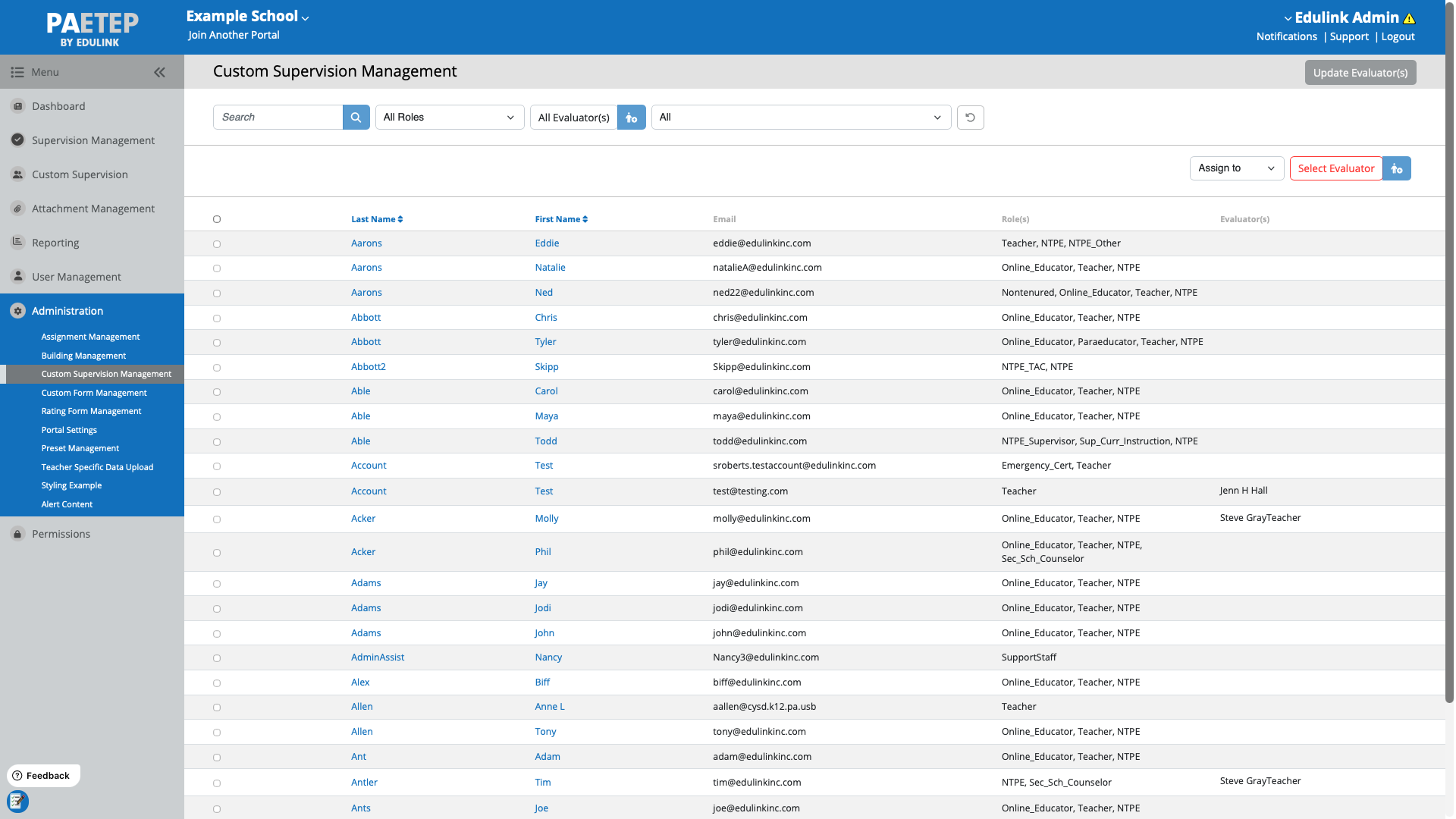
Step 2: Select an evaluator
Use Select Evaluator to choose who will evaluate others.
After selecting an evaluator, the employee list updates to show checkboxes for valid assignments.
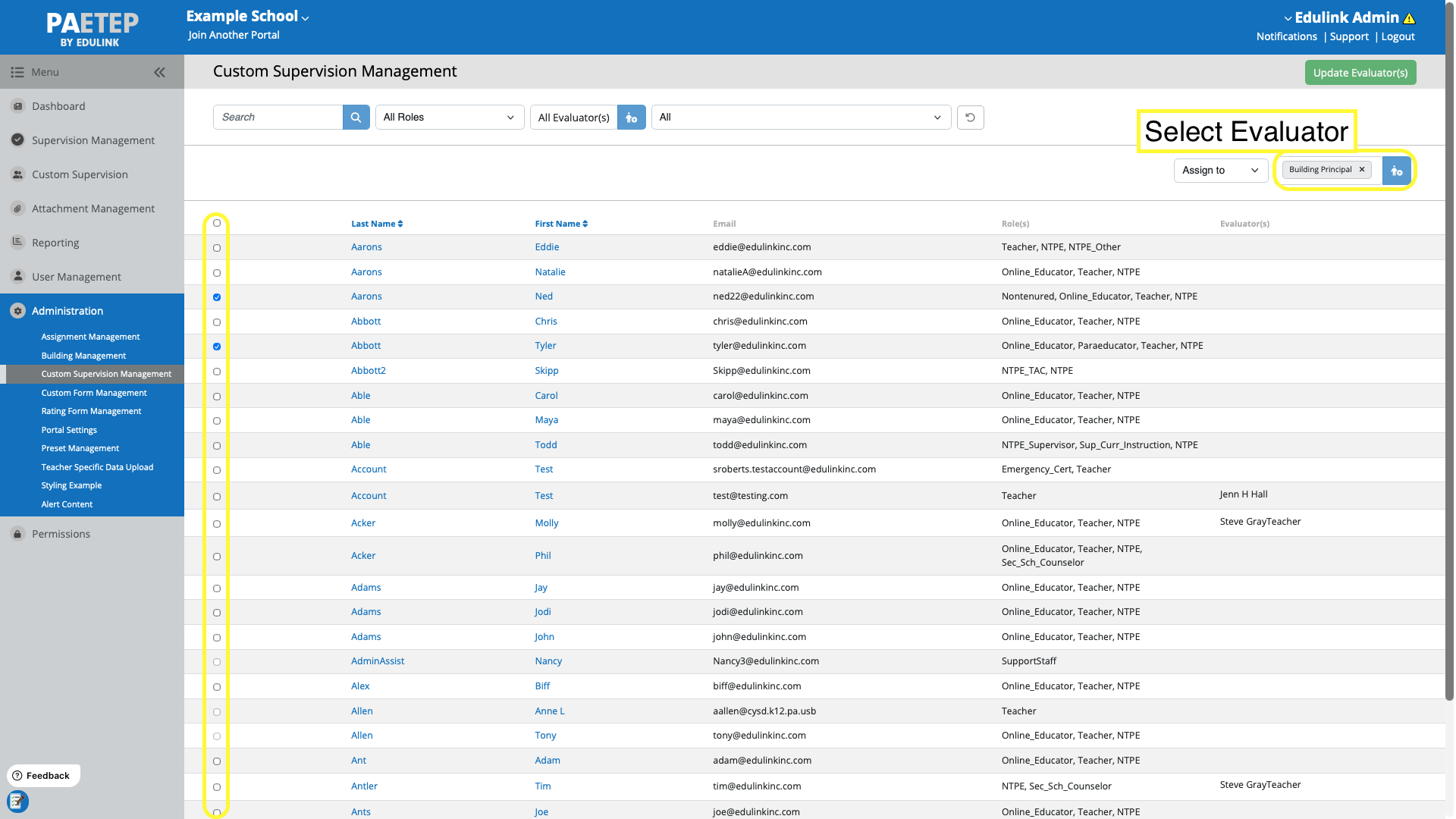
Step 3: Assign employees
Check the employees you want to assign to the selected evaluator.
Use the Assign to action to apply the assignment.
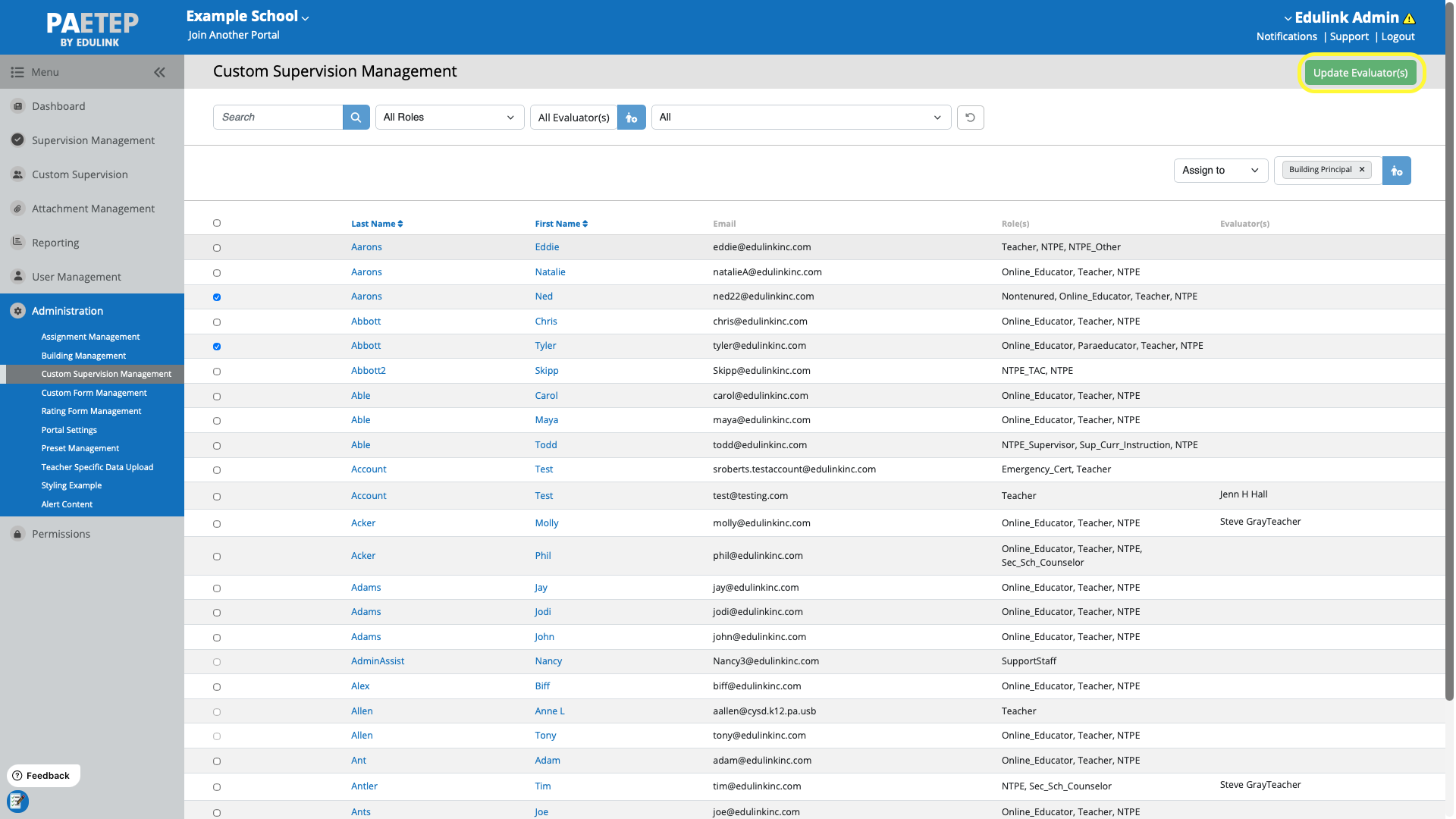
PAETEP will prevent invalid configurations, such as:
- Assigning a user to themselves
- Assigning an evaluator who is not permitted based on role rules (i.e. user with teacher role cannot evaluate a district admin)
How Evaluators See Assigned Employees
After assignment, evaluators can go to Custom Supervision to view a list of assigned employees. Clicking an employee opens that employee’s User Summary page.
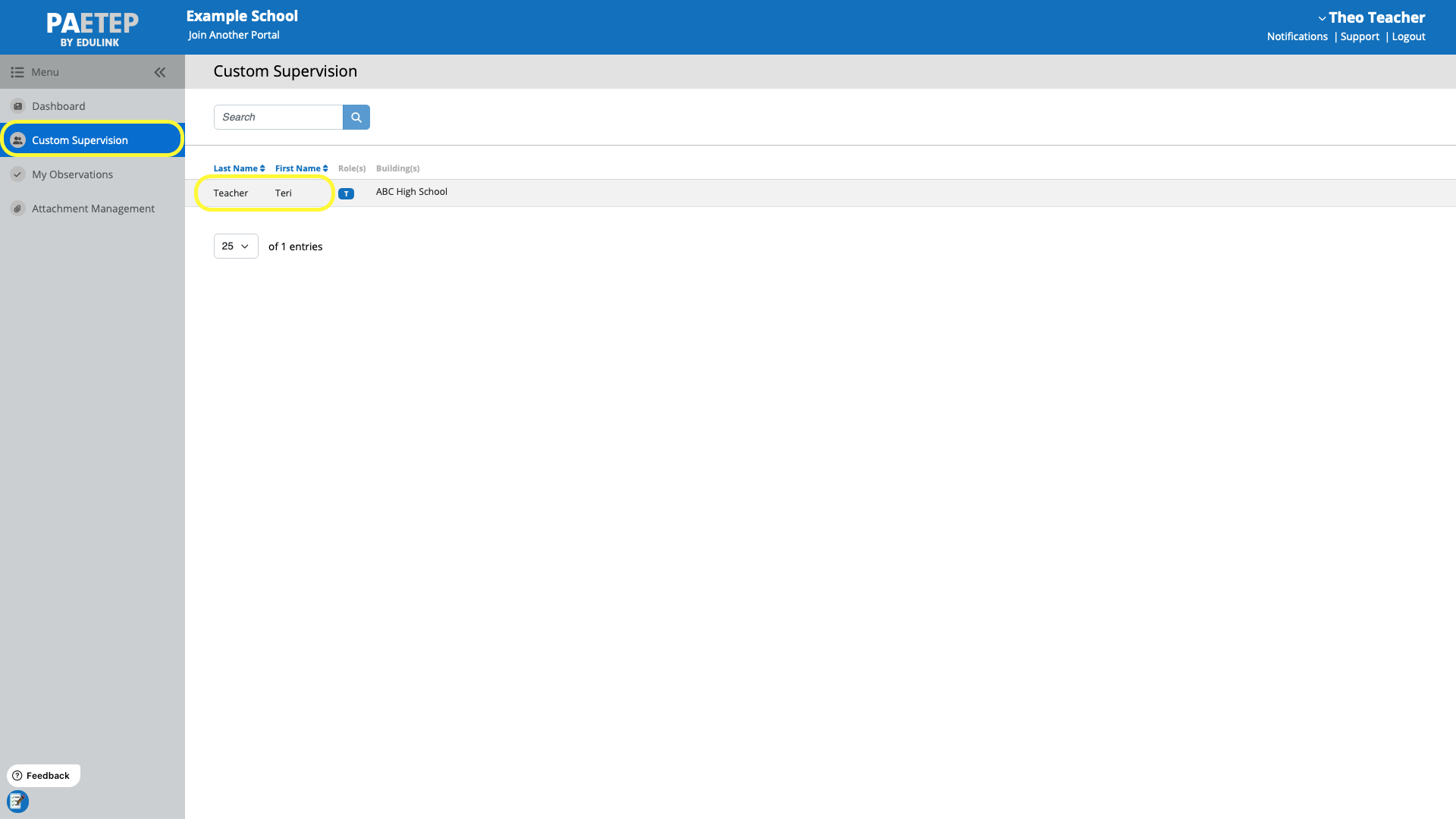
Confidential Visibility on the User Summary Page (Limited vs Full view)
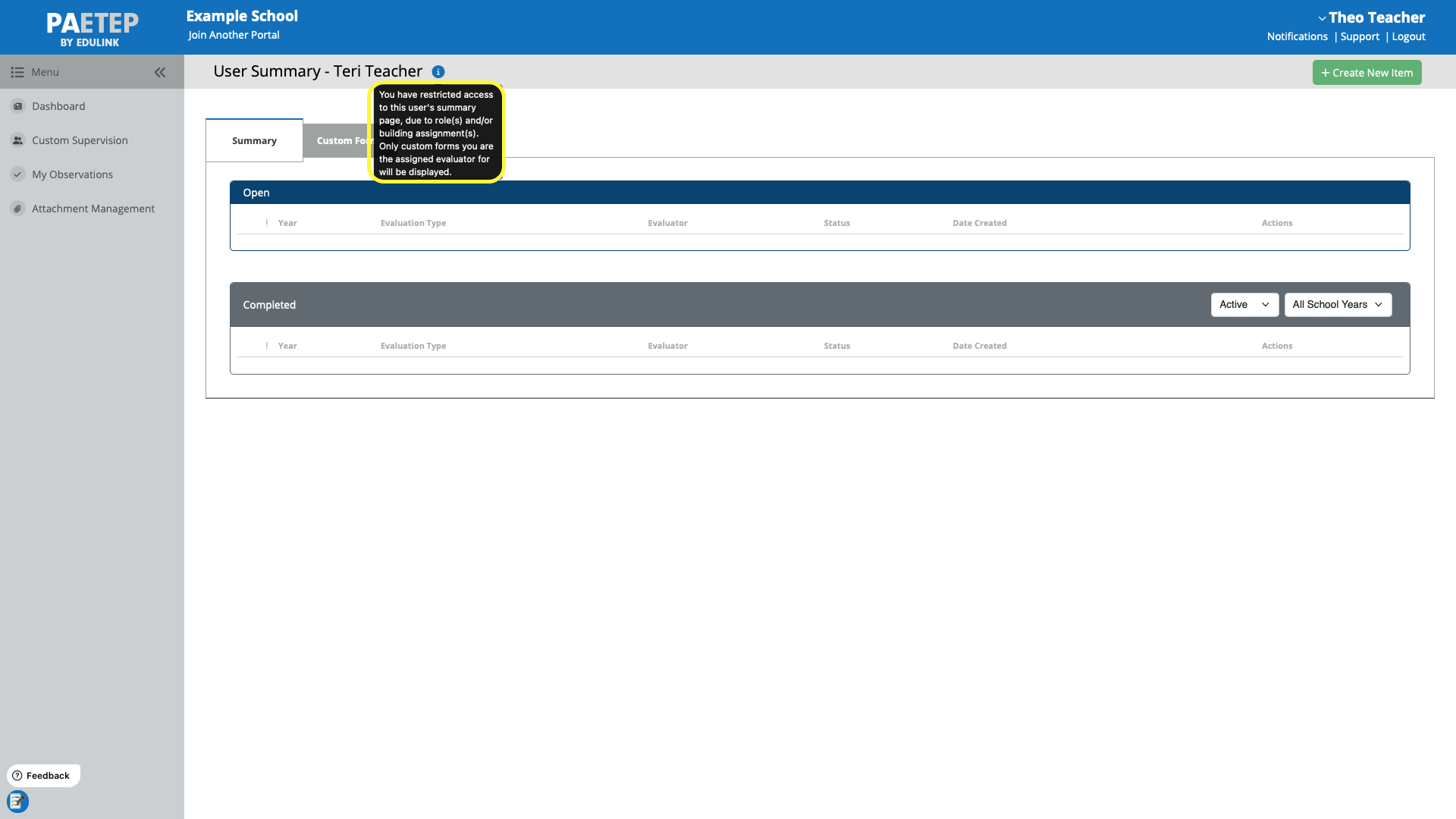
When an evaluator opens an employee from Custom Supervision, the User Summary may be restricted.
If the evaluator does not have standard supervisory/building permissions for that employee, they will see a limited view:
Only items the logged-in evaluator started
Only item types associated with Custom Supervision (Phase 1 = Custom Forms)
A message will display indicating access is restricted.
FAQs
- Q: Will assigning a teacher to evaluate another teacher allow them to see all evaluations for that employee?
- Q: Can a supervisor assign anyone to anyone?
- Q: Does this help districts where an admin user also needs to be evaluated confidentially?
- Q: Does Custom Supervision support observations other than Custom Forms?
- Q: How will items created through custom supervision affect reporting?
Q: Will assigning a teacher to evaluate another teacher allow them to see all evaluations for that employee?
No. When accessing an employee through Custom Supervision, evaluators will:
Only see evaluations they personally started
Only see item types associated with Custom Supervision (Phase 1 = Custom Forms)
They will not see evaluations conducted by other supervisors unless they already have full supervisory permissions through standard supervision settings (i.e. supervisor role and assigned to the same building).
If you have any more questions, please contact our support team.
Q: Can a supervisor assign anyone to anyone?
No.
Assignments are restricted based on role hierarchy rules. Generally, a lower-permission user cannot be assigned to evaluate a higher-permission user. For example:
A principal cannot be evaluated by a teacher
A district admin cannot be evaluated by a support staff
An NTP supervisor cannot be evaluated by an user with an NTP role
Here are some examples of valid assignments that can be set up:
A teacher can be set up to evaluate a support staff supervisor
A support staff can evaluate a teacher (and visa-versa)
A user with an NTP role can evaluate a Teacher
A principal can evaluate another principal
A principal can evaluate an NTP supervisor
A district admin can evaluate another district admin.
If you have any more questions, please contact our support team.
Q: Does this help districts where an admin user also needs to be evaluated confidentially?
Yes — Custom Supervision supports confidential evaluation workflows for users who may also have administrative access. Simply set up a district admin to evaluate another district admin.
Note - district admins will be provided with limited access to the other district admin's user summary page. They will only be able to access/view items they personally started.
If you have any more questions, please contact our support team.
Q: Does Custom Supervision support observations other than Custom Forms?
Currently, this feature is designed to only support Custom Forms. However, there are some instances in which other observations will be available through this workflow (i.e. when the evaluator is provided with the "full" view of the user summary page).
If you have any more questions, please contact our support team.
Q: How will items created through custom supervision affect reporting?
Custom Supervision affects who can view items, but reporting behavior follows existing report rules. Items created through custom supervision will add to the counts on the Supervision management pages, Observation Summary Report, Custom Form Usage Reports, etc.
If you have any more questions, please contact our support team.
Was this article helpful?
That’s Great!
Thank you for your feedback
Sorry! We couldn't be helpful
Thank you for your feedback
Feedback sent
We appreciate your effort and will try to fix the article