PPID numbers help PAETEP connect district-uploaded Teacher Specific Data to the correct educator's 13 forms. This article explains two ways to update PPID numbers: individual users can update their own PPID from their profile, or District Administrators can update PPID numbers for multiple users with a bulk upload.
Table Of Contents
Option 1: Users Update Their Own PPID
Users can update their own PPID number from their profile.
Option 2: District-Managed Bulk Upload
District Administrators can use User Onboard & Update to update PPID numbers for multiple existing users at one time.
Note: You must be a District Administrator-level user with access to User Management to complete the bulk upload process.
Download the Onboarding Template
- Go to User Management > User Onboard & Update.
- Select Download Template to download the Onboarding Template.
Figure: Download the Onboarding Template from User Onboard & Update.
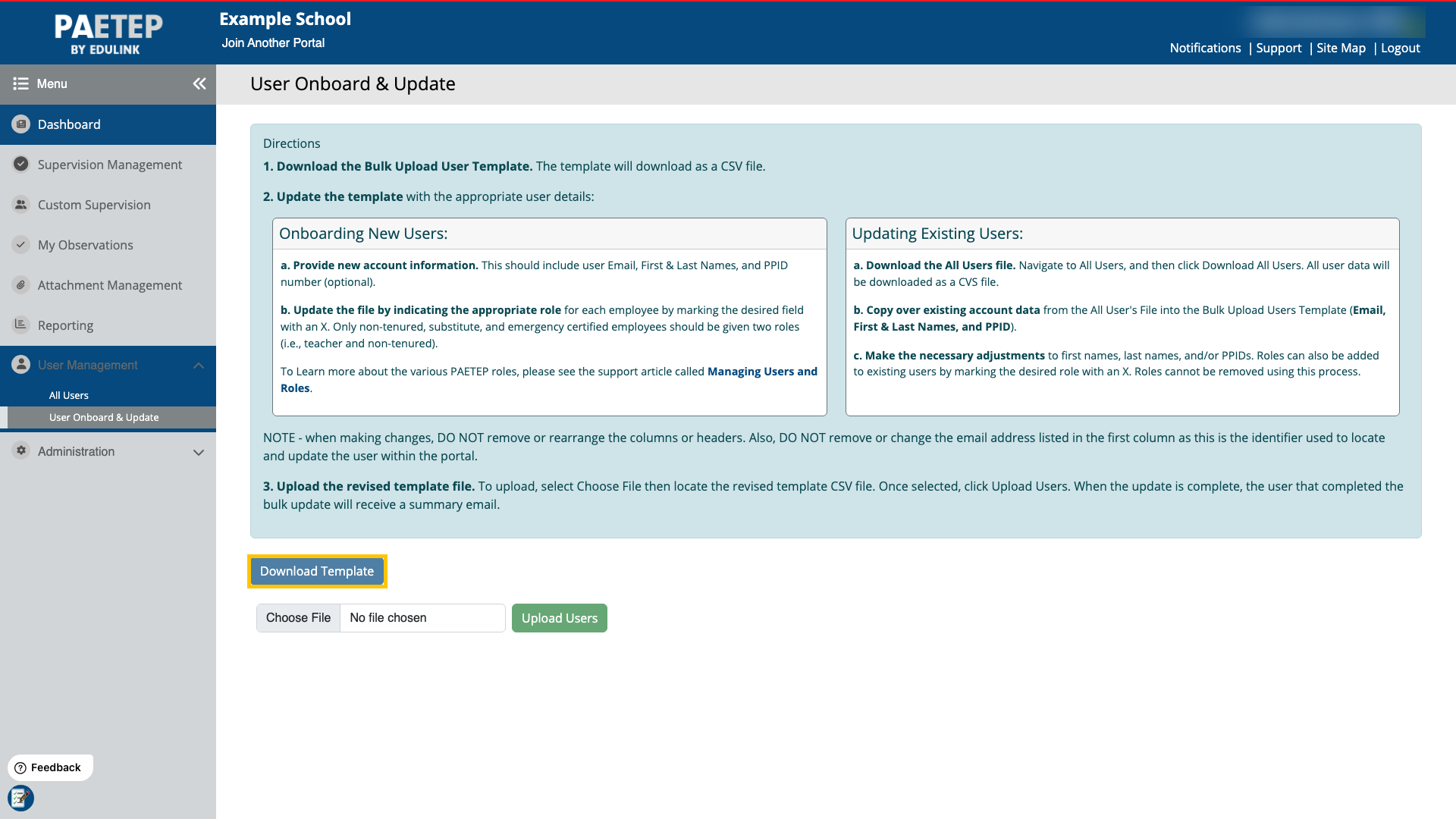
Figure: Onboarding Template before user information is added.

Download the All Users Template
- Go to User Management > All Users.
- Select Download All Users to download the All Users Template.
Figure: Download the All Users Template from All Users.
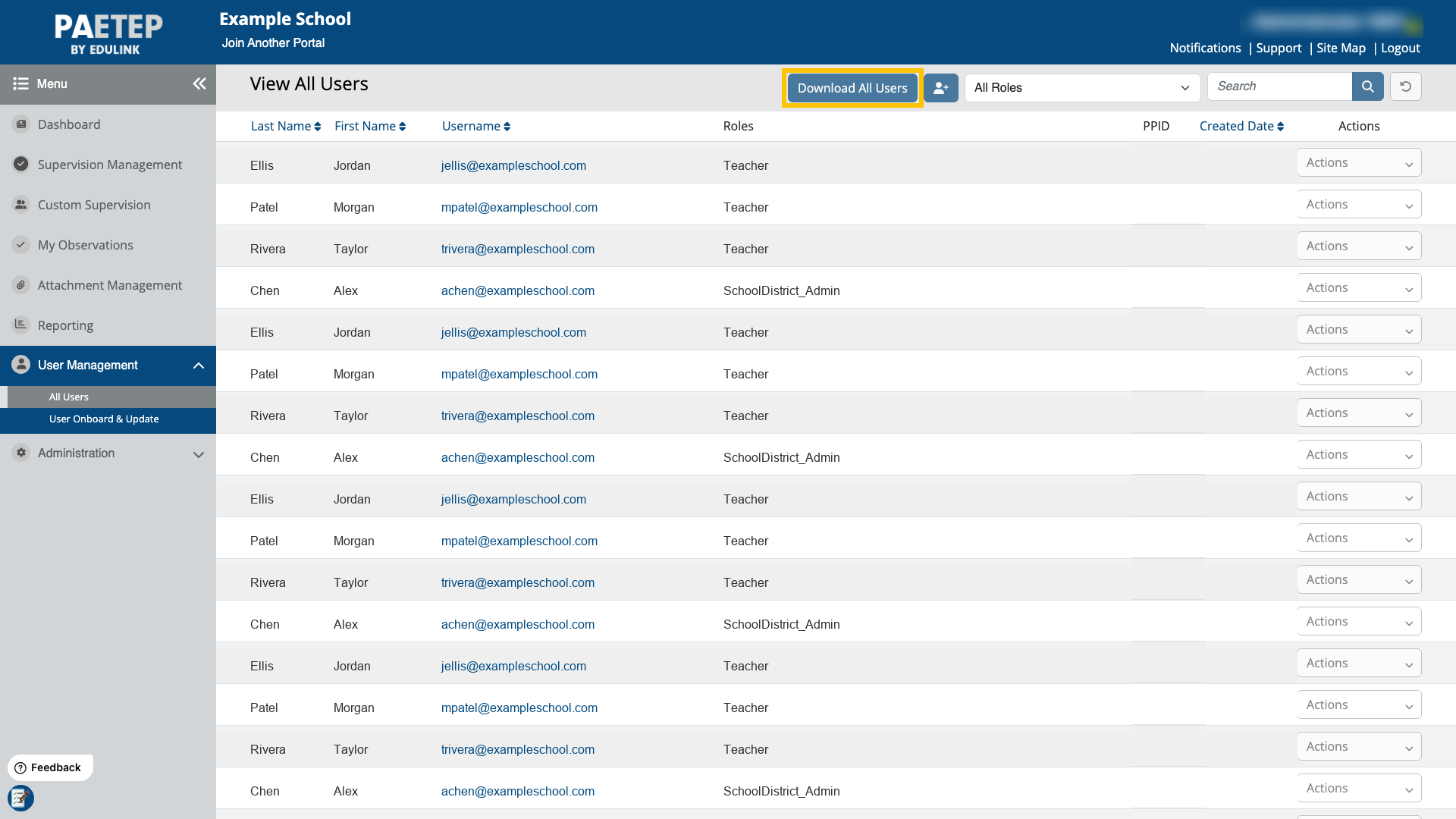
Figure: All Users Template with blank PPID values.

Update the Onboarding Template
- Open the Onboarding Template.
- Copy the existing user information from the All Users Template into the Onboarding Template. You only need to include the users whose PPID numbers you want to update.
- Enter or update the PPID number for each applicable user.
- Save the updated Onboarding Template.
Note: For existing users, keep the email address exactly as it appears in PAETEP. The email address is used to match the row in the Onboarding Template to the correct user account. Do not remove, rename, or rearrange column headers.
Figure: Onboarding Template after PPID adjustments have been made.

Upload the Onboarding Template
- Return to User Management > User Onboard & Update.
- Select Choose File.
- Choose the updated Onboarding Template.
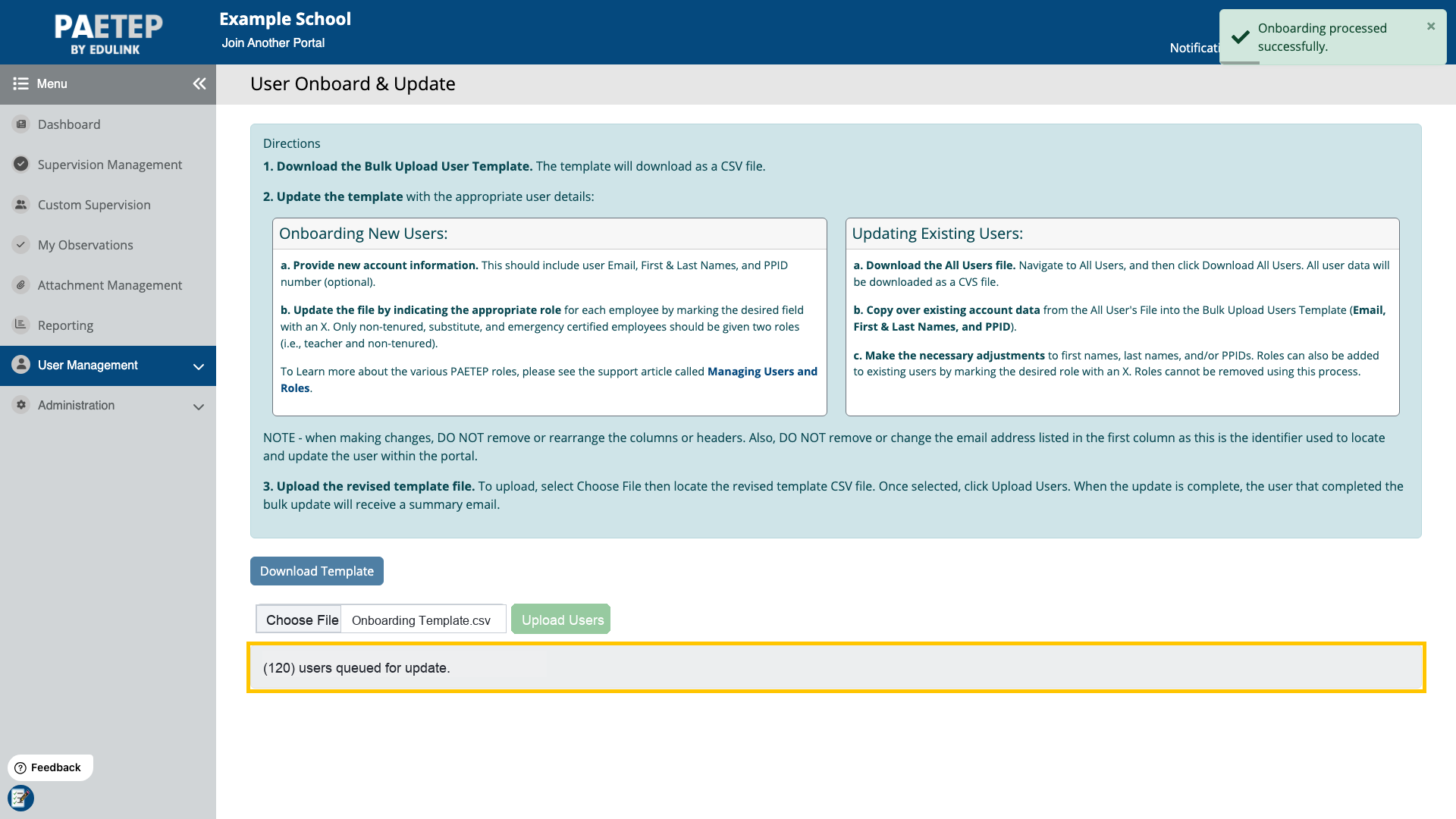
- Select Upload Users.
Figure: Updated Onboarding Template selected for upload.
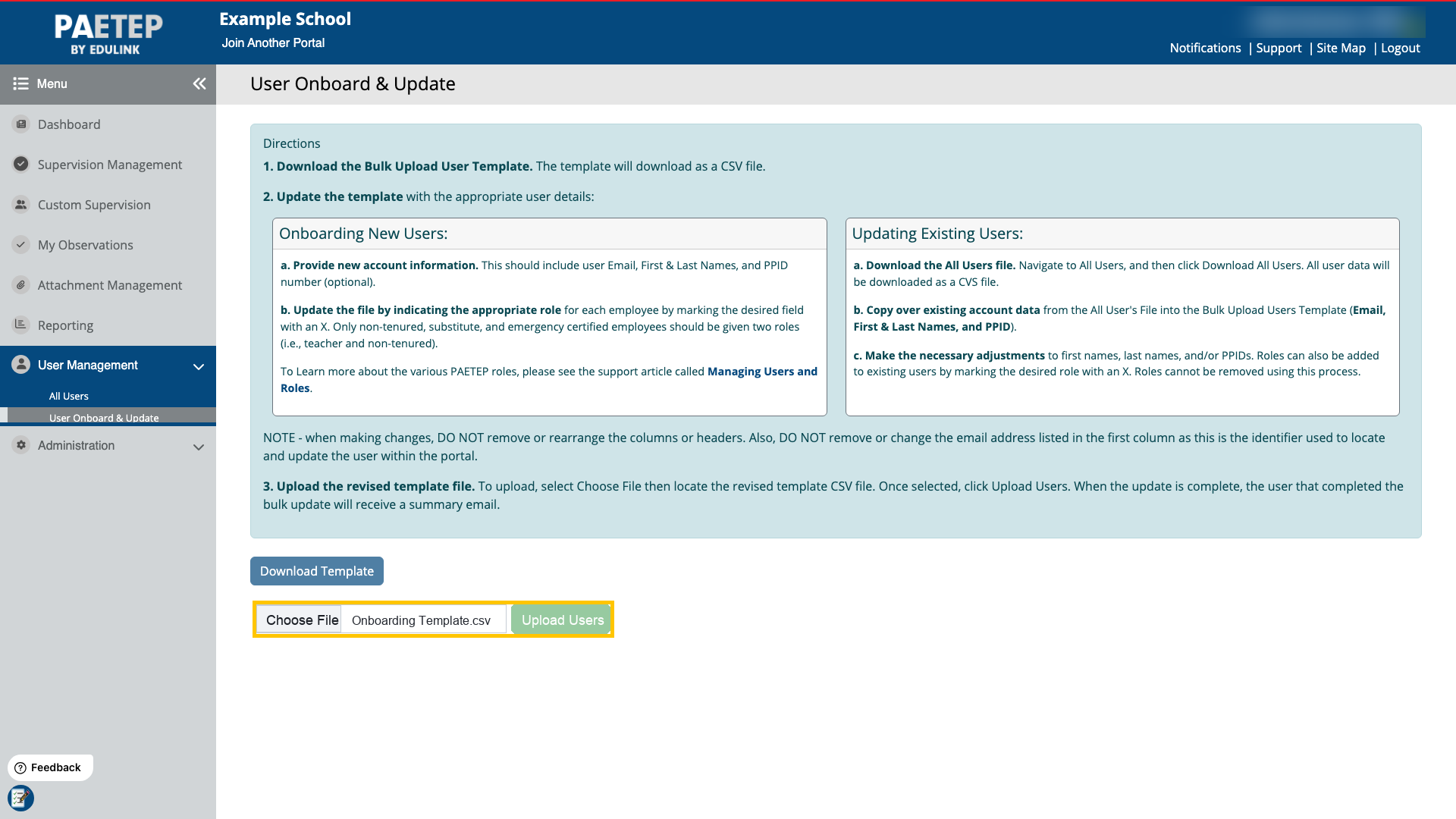
Figure: Queued update confirmation after Upload Users is selected.

Was this article helpful?
That’s Great!
Thank you for your feedback
Sorry! We couldn't be helpful
Thank you for your feedback
Feedback sent
We appreciate your effort and will try to fix the article